Search The Knowledge Base
AI Chatbot Integration for Google Chat
With our interactive AI Chatbot integration for Google Chat, you can manage many aspects of your asset and inventory data using natural conversation directly within the Google Chat app.
What Can Our AI Chatbot Integration For Google Chat Do?
Our AI chatbot for Google Chat can streamline common workflows and complete tasks directly in Google Chat, without switching between apps.
The supported functions include:
- Record Creation: Create or update records by uploading CSV files or sharing spreadsheet rows using our spreadsheet add-ons for Excel or Google Sheets.
- Barcode & NFC scans: Scan QR Codes, NFC tags, and other ID barcodes directly to the Google Chat app.
- Document Upload: Upload documents and photos and match them to assets or inventories.
- Notifications: Receive notifications directly in the Google Chat app or create them for other channels.
- Search: Search for records.
- To-do Tasks: Add to-do tasks.
- Reports: Generate report URLs you can import into Power BI or Looker Studio for visualization, or directly into Excel and Google Sheets for analysis.
- Export Data: Export data records to CSV.
- Statistics: Get quick record counts or sums.
- Groups: Create or update asset & Inventory groups
- Users: Create users for both the smartphone and web app.
- Knowledge Base: Ask and receive summarised how-to articles.
Setting Up Our Google Chat AI Chatbot
In your account, go to the Interactive AI Chatbots page.
Under the Google Chat section, click on the Connect button.
You will then be redirected to the Google Marketplace to install the chatbot.
1. Install the App from the Marketplace Listing
- Individual Users: Click Install (or Individual Install). Review and accept the authorization scopes when prompted.
- Domain Admins: Click Admin Install to deploy the app across the entire organization or to specific organizational units.
2. Open Google Chat
- Navigate to chat.google.com or open Google Chat within Gmail.
3. Add/Start a Conversation with the Bot
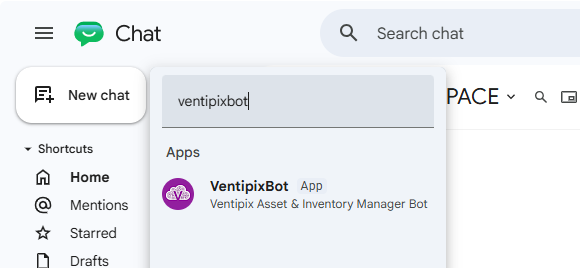
- Click New chat (+) in the left sidebar.
- Select Add apps (or search VentipixBot in the search bar).
- Locate the app in the list and click Add or Chat.
4. Interact with the Bot
- Direct Message (1:1): Type a message (or use the slash commands) to start conversing with the bot immediately.
- Adding to a Space: To bring the bot into a team room, open the Space, click the space name at the top > Apps & integrations > Add apps, and mention the bot using
@VentipixBot.
Working With Our Google Chat AI Chatbot
Creating and Updating Records
To create or update records, you can upload a CSV file from the chat app interface, share rows of data from a spreadsheet using our spreadsheet add-ons for Excel and Google, or ask the bot to create/update a single record from a text-only prompt.
Scanning Barcodes and NFC Tags
When creating, searching, or updating single records, you may need to scan the record’s barcode or NFC tags.
To do so, prompt the chatbot to start a scan session, then follow the bot’s instructions to use our iOS and Android app to scan QR Codes, 1D barcodes, and NFC tags.
Once the scan has been made on the smartphone app, the scan results will be sent directly to the Google Chat app.
Receiving Chat Notifications
You can set up chat notifications that get triggered whenever a monitored new activity takes place, or based on specific conditions that should be met first.
To set up the chat notification, simply prompt the chatbot to create a chat notification.
Setting Up Other Notifications
In addition to chat notifications, you can set up other notifications for emails and calendar.
Just as with the chat notification, to set up email or calendar notifications, simply prompt the chatbot to create one.
Uploading Documents
You can upload documents and photos, and optionally associate them with assets or inventories.
To do so, upload the file from the chat app’s interface, then prompt the chatbot to upload or create an association with an asset or inventory record.
Generating Reports
You can generate reports based on specific parameters, then get a URL to import them for visualization in Power BI and Looker Studio, or use our spreadsheet add-ons for Excel or Google Sheets to auto-import them.
To do so, prompt the chatbot to generate a report, then specify the type of report, and define your report’s parameters.
Exporting Data
You can export data as a CSV for any of your records.
To do so, prompt the chatbot to export data for a specific service.
Creating Tasks
You can create to-do tasks related to assets and inventory records.
To do so, prompt the chatbot to create a task.
Searching for Records and Obtaining Statistics
You can search for records or obtain basic statistics about them, such as counts and aggregate totals.
To do so, prompt the chatbot for the value to search for and the field to search in.
Creating and Updating Groups
You can create or update groups for assets and inventory records.
To do so, prompt the chatbot to create or update the group.
Creating Users
You can create user accounts for our smartphone app or the web app.
To do so, simply prompt the chatbot to create a user for the appropriate account.
Getting Help
You can get the chatbot to find and summarize knowledge base articles, or open a support ticket.
To do so, prompt it with a how-to question.
Slash Commands
These command shortcuts can trigger our chatbot to perform the respective function.
| Command | Description |
|---|---|
bot-csv-import |
Import asset and inventory data from an attached CSV file. |
bot-process-csv |
Process a previously attached CSV file or shared spreadsheet data. |
bot-record |
Create a single asset or inventory record. |
bot-scan |
Trigger a QR code, barcode, or NFC scan in the mobile app and receive results here. |
bot-search |
Search for asset and inventory records. |
bot-notification |
Create notifications for chat, email, or calendar. |
bot-document |
Upload files and associate them with asset or inventory records. |
bot-reports |
Generate reports compatible with Power BI and Looker Studio. |
bot-tasks |
Create a to‑do task. |
bot-stats |
Get sum and count statistics for your asset and inventory records. |
bot-groups |
Create or update asset and inventory groups. |
bot-users |
Create users for the web platform or mobile app. |
bot-support |
Open a support ticket to contact our support team. |
bot-logout |
Log out of your chat session. |
bot-help |
Get help from our knowledge base. |